Set the mouse report rate to 1000 Hz
The report rate lives in the mouse vendor's own software, not in Windows settings. Here is where Logitech and Rapoo hide it.
Three things to know first
HWMacro requires a mouse report rate of 1000 Hz. Anything higher causes stutter, dropouts and sticky keys.
- This setting exists only in the mouse’s own driver software. Windows settings do not have it.
- If the driver has no report-rate entry at all, the mouse cannot do 1000 Hz.
- Wired and 2.4 GHz wireless mice both work; Bluetooth mice are not supported.
Logitech (G HUB)
Open G HUB, pick your mouse, click Sensitivity (DPI) on the left, and set Report Rate to 1000.
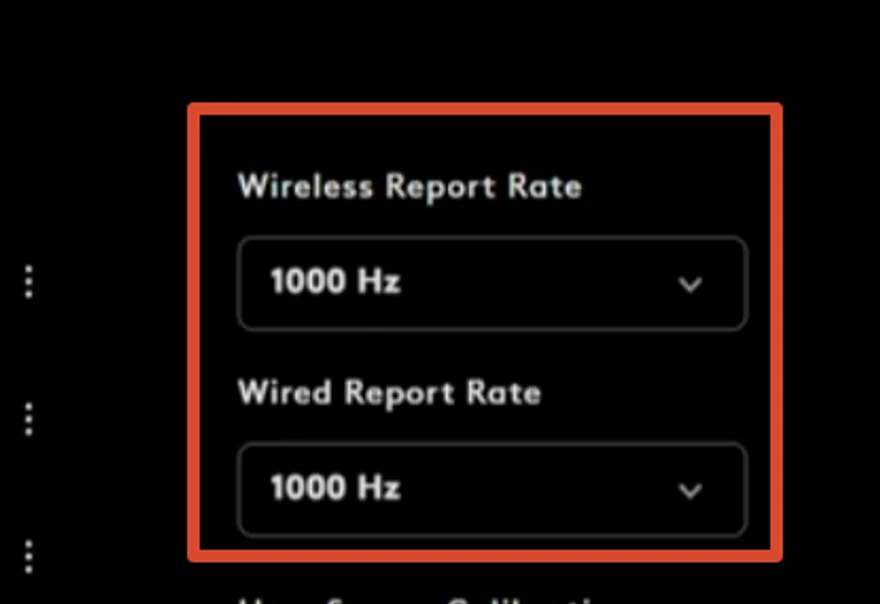
When the wired and wireless rates are listed separately, you get two dropdowns, Wireless Report Rate and Wired Report Rate. Both should read 1000 Hz.
Rapoo
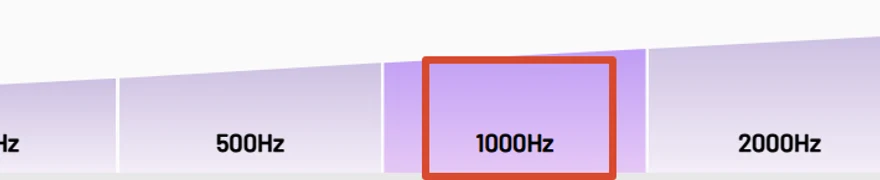
Open the Rapoo driver, pick your mouse, go to Performance, and click 1000Hz on the Report Rate row.
Other brands
Look inside a page named Performance, Advanced or Device settings, and search for one of these:
- Report Rate / Polling Rate
- USB Report Rate / Polling Frequency
- Reports per second
Back to Get started
When it is set, go back to step 2 of Get started.