Delta Force: set up and verify
Delta Force: check the recommended in-game settings, then verify the recoil in game.
← Back to the quickstart to pick another game
In-game settings to check
Settings → Keyboard & Mouse → Mouse sensitivity
Below are our recommended settings. Compare them with the values you have now.
# Setting Recommended 1 Mouse sensitivity 3.00 2 Vertical sensitivity 1.00 3 Horizontal sensitivity 1.00 4 ADS sensitivity bonus 1.00 5 ADS vertical sensitivity 1.00 6 ADS horizontal sensitivity 1.00 7 ADS sensitivity type MDV only 8 Screen distance factor 1.33 9 Adaptive scope magnificationin Settings → Game → Gameplay Off What the settings pages look like (two screenshots)
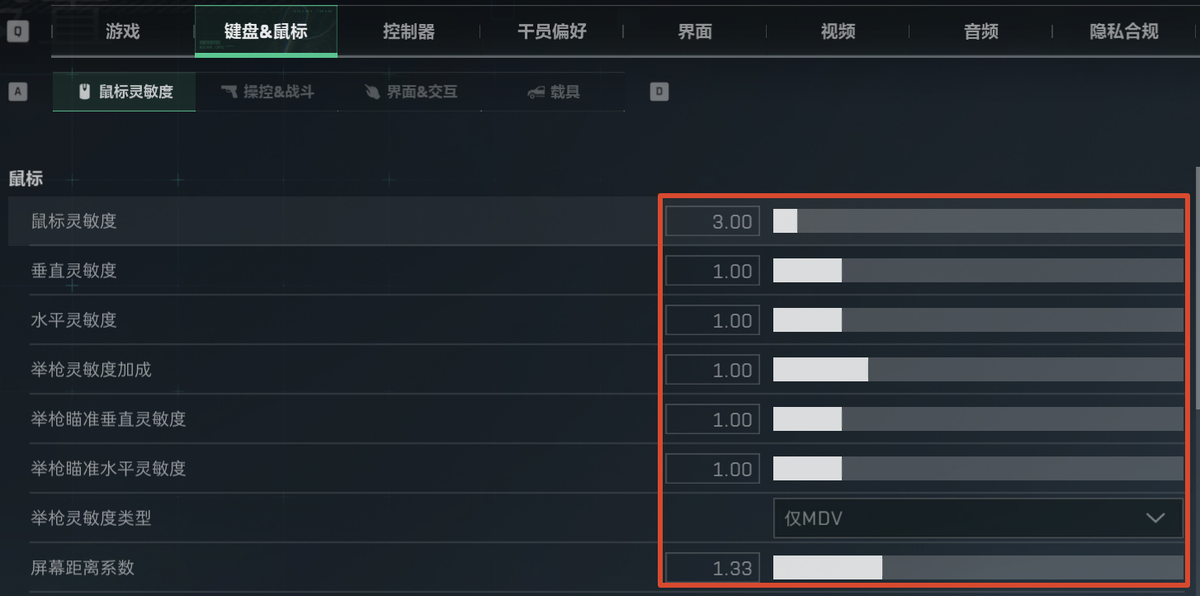
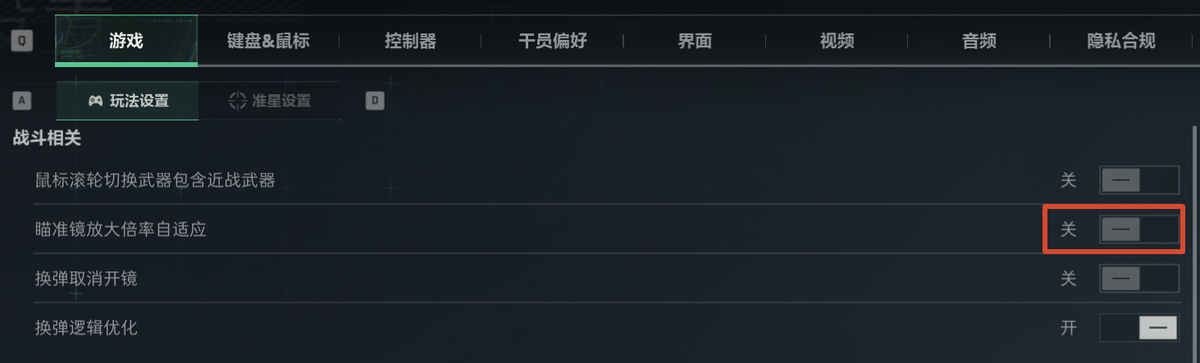
Do your values match the table?
Does your setup match the table above?
App → Groups → the "⋯" at the top right of the card → Edit group sensitivity
Pick Convert from game sensitivity at the top
This page covers items 1–6 of the table above.
Enter what the game shows. If in-game Mouse sensitivity is 2.50, put 2.50 in item 1.
Then do the in-game check
App → Groups → the "⋯" at the top right of the card → Edit group sensitivity → switch to Set directly at the top
This page has a single input (group sensitivity), unrelated to your in-game sensitivity.
Start at 1, empty a magazine in the training range, and go up (1.0 → 1.1) until it holds. If you overshoot (the spray drops low), go down one step (1.1 → 1.0). Compare the actual spray with the clip below.
Check the recoil in game
Pick this profile in the app:18-M4A1 · 1.25x
Which server do you play on?ChinaM4A1突击步枪-烽火地带-6JP276O00M6HMNT2EN11IGlobal—Plain ammo only. Do not use rounds that change recoil (PLY, for example).
Operations · reference clip Pick this profile in the app:90-QBZ95
Which server do you play on?Not yet
Warfare · reference clip
Common questions
Why are weapon codes not interchangeable between servers?You just reported this
China and Global use different weapon data, so a code from one server fails to import on the other.
Pick the server you actually play on, then copy that code.
Recoil feels off? Check these in orderYou just reported this
Start with 02 again → every setting that affects recoil control is in the table above. Check them one by one.
Still not right → taking 18-M4A1 as the example, check these:
Still not right after that → set all nine items in 1 recommended game settings back to the recommended values and drop your own settings for now. Then tap “Reset to recommended” in the app’s Edit group sensitivity page.
Recoil feels off? Check these in orderYou just reported this
Start with 02 again → every setting that affects recoil control is in the table above. Check them one by one.
Still not right → taking 90-QBZ95 as the example, check these:
Still not right after that → set all nine items in 1 recommended game settings back to the recommended values and drop your own settings for now. Then tap “Reset to recommended” in the app’s Edit group sensitivity page.
Should I change my mouse DPI?You just reported this
If the mouse feels too slow or too fast, change the DPI in your mouse driver. Set it to whatever you like, it does not affect the settings above.