Quickstart Guide
Make sure you have three things ready, then follow four steps in order: wire it up → install and connect → choose a profile → set up your game. Each step ends with a result you can check yourself.
Before you start: what you need
Which device will run HWMacro?
- MAKCU
- HWMacro account
- USB-C OTG adapter (search “Type-C OTG adapter”)
01 Wire it up
Connect in this order: mouse → Android phonesecond PC → gaming PC.
Mouse → USB3
2.4 GHz wireless mouse: plug the receiver into MAKCU USB3. Wired mouse: plug the mouse cable into MAKCU USB3. Bluetooth mice are not supported.
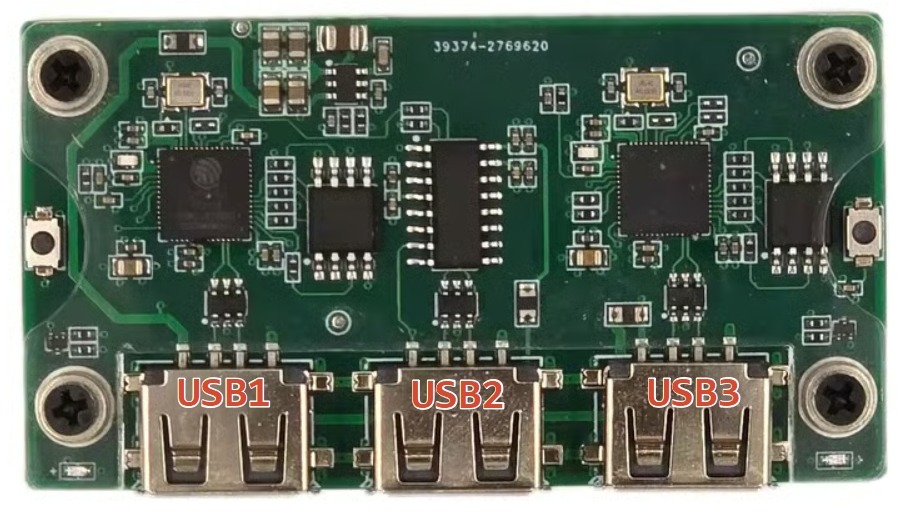
USB1 / USB2 / USB3, left to right USB2 → Android phone
Plug the USB-C OTG adapter into the phone.
USB2 → second PC
Use a USB cable with identical ends: one end into box USB2, the other into the second PC.
Gaming PC → USB1
Plug a USB cable with identical ends: one end into the gaming PC, the other into box USB1.
02 Install and connect
Download and install
Download for Android ↓The system warns you once; that is normal. Allow “unknown sources” once. Tap the installer in the notification shade when it finishes.Download for Windows ↓The system warns you once; that is normal. Choose “More info” → “Run anyway”.- Nothing happens when you tap download / it stops midway: try Chrome or Edge again once the network is steady.
- The system blocks the install: tick “unknown sources” and allow it once.
- Nothing happens when you tap download / it stops midway: try Chrome or Edge again once the network is steady.
- The system blocks the install: choose “More info” → “Run anyway”.
Install the CH343 driver
Windows needs this driver before it can see the box. After installing HWMacro, run the installer: download CH343SER.EXE. Double-click it, then open the app.
Set the polling rate to 1000 Hz, open HWMacro
Your mouse polling rate must be 1000 Hz; a higher rate causes stutter or dropouts. Open the app and sign in.
Tap "Connect"
Back on the app Home screen, tap “Connect” in the Device Connection card to start connecting MAKCU.
One permission prompt
The first connect asks once: tick the box and tap Allow.
First check that the cabling is right, then see MAKCU troubleshooting.
Tap "Test buttons"
App → Home → Test buttons. No game needed: press every mouse button and the matching spot on the diagram lights up.
[缺少截图元数据: start-03-connection]Unplug and replug USB1, then see MAKCU troubleshooting.
Done when: the Device Connection card in the app shows “Connected”.
- For HWMacro, turn off battery optimization and allow autostart: Android clears background apps, and clearing it drops the connection. Usually under Settings → Apps → HWMacro.
- Decide how to power the phone: the box takes the phone’s USB port. Phones with wireless charging can charge wirelessly; otherwise get a PD-capable dock so the box and the charger can be connected at the same time.
Screen lock is fine while connected; it does not need to stay on. See Advanced usage.
03 Choose a profile and trigger the recoil once
Profile group = the game you are playing. Profile library = every profile for that game. Profile = one entry, the recoil data for one weapon.
Select the profile group
Tap Groups at the bottom and pick the game you are playing, for example CS2.
[缺少截图元数据: start-04-groups]Activate a profile
Open the library. There are two ways to switch:
- Tap a profile card directly.
- Set a keyboard shortcut (top-right corner of the card).
The name of the active profile also shows at the top.
[缺少截图元数据: start-04-profiles]Try the recoil trigger once
No game needed: test it on the desktop now. The default mode is Hold. Go to App → Home → Recoil Guide and follow it once.
[缺少截图元数据: start-04-trigger]
Done when: you complete one full trigger in Recoil Guide.
- Check that MAKCU is connected and the button test passes.
- Still nothing? Troubleshoot by symptom → MAKCU troubleshooting.
04 Set up your game and confirm the result
Pick the game you are playing
Tap the matching card below to finish.
FAQ
What does my phone need?
Android phone or tablet: Android 8.0 or newer.
Network: signing in and loading profiles need a connection. Right after installing, confirm that you can sign in.
What does my PC need?
Second Windows PC: Windows 10 or 11, 64-bit (the installer is 64-bit only).
Network: signing in and loading profiles need a connection. Right after installing, confirm that you can sign in.
What do "profile group", "profile library" and "profile" mean?
Profile group = the game you are playing.
Profile library = every profile for that game.
Profile = one entry in it, the recoil data for one weapon.
What is the difference between Hold and Tap?
Hold is the default and you do not have to change it.
Hold (recommended): keep holding. Recoil starts when both keys are held and stops as soon as you release either one. Nothing to toggle, so melee, utility and other actions keep working.
Tap: no need to hold. Tap once to start, tap again to stop after the clip.
To switch: see "Recoil Guide" in the app.
What is the CH343 driver, and why do I need it?
It is the small program that lets Windows recognise the box. Without it the PC does not see the box.
02 has a separate step for it with the download link (CH343SER.EXE); download it and double-click to install.
Do I need to buy a data cable separately?
Usually not. The box normally ships with 2 USB-A male-to-male data cables: enough for the gaming PC plus your phone (or a second PC).
Buy one only if a cable is missing. Look for "supports data transfer"; a charge-only cable does nothing at all.
It drops after a while?
Drops are usually Android killing the app in the background: disable battery optimization for HWMacro and allow it to auto-start.
The recoil stutters?
Set the mouse polling rate to 1000 Hz first.
Stuck on one of the steps?
Every step ends with a "stuck?" fold. Open it there first; it covers the most likely causes for that step.
Still cannot find it by symptom?
Troubleshoot by symptom → MAKCU troubleshooting / a button does not respond